WordPress Site Down? Here's Exactly What to Do in the Next 5 Minutes
Your WordPress site is down. Maybe you got an alert. Maybe a customer texted you. Maybe you just checked your site and saw a white screen, an error message, or nothing at all.
Take a breath. Your data is almost certainly safe. And in the next five minutes, you're going to figure out exactly what's wrong and what to do about it.
This guide is written for business owners, not developers. No FTP. No command lines. No code. Just a clear, calm sequence of steps.
If you'd rather skip straight to a fix, that's what we do: help when my WordPress site is down is a $100 flat-fee emergency repair, and you only pay if it works.
The 5-Minute Emergency Checklist
Before you do anything else, run through these four checks. They take about 60 seconds each and will immediately tell you whether this is something you need to panic about — or something that's already fixing itself.
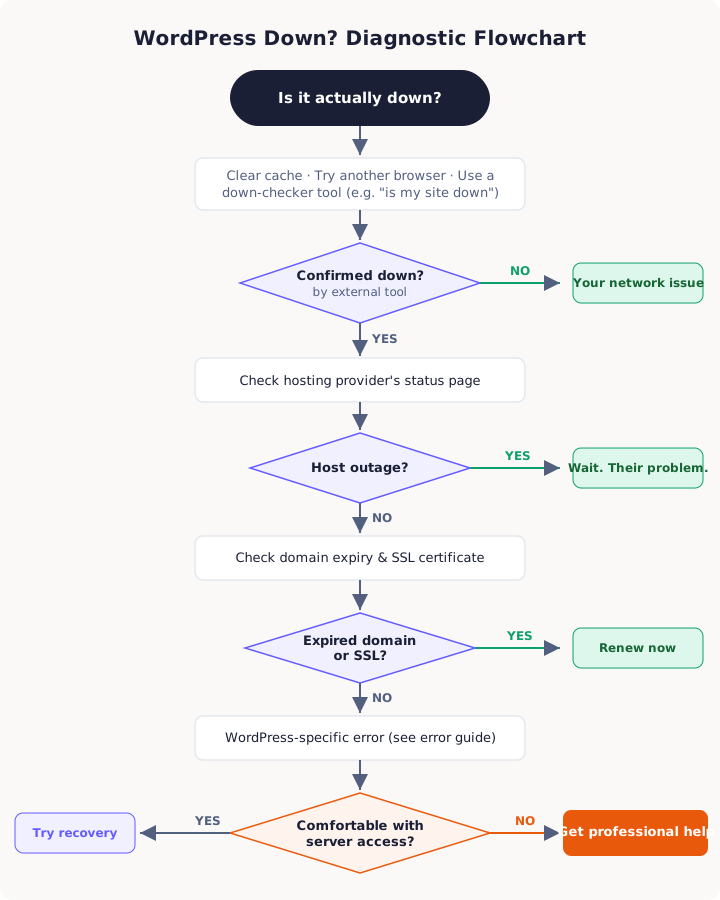
1. Confirm your site is actually down
It sounds obvious, but the first thing you need to rule out is a problem on your end.
- Clear your browser cache (Ctrl+Shift+R on Windows, Cmd+Shift+R on Mac) and try again
- Try a different browser or your phone's mobile data (not Wi-Fi)
- Use a free down-checker — search "is my site down" on Google and enter your URL
If the down-checker says your site is up but you can't reach it, the problem is likely your internet connection, your DNS cache, or a CDN issue. Try restarting your router or switching to mobile data.
If the checker confirms your site is down, move to step 2.
2. Check your hosting provider's status page
Most hosting companies have a status page that shows current outages. Here's where to find them:
| Hosting Provider | Status Page |
|---|---|
| SiteGround | status.siteground.com |
| Bluehost | bluehost.statuspage.io |
| GoDaddy | status.godaddy.com |
| WP Engine | wpenginestatus.com |
| Cloudways | status.cloudways.com |
| Kinsta | status.kinsta.com |
| HostGator | status.hostgator.com |
If your host shows an active incident: This is their problem, not yours. There's nothing you can do except wait. Most hosting outages resolve within 1-4 hours. Post an update on your social media so customers know you're aware, then wait.
If the status page shows everything normal: Your site's problem is specific to your account. Move to step 3.
3. Check your domain and SSL
Two common causes of "site down" that have nothing to do with WordPress:
Domain expiry. Go to your domain registrar (GoDaddy, Namecheap, Cloudflare, etc.) and verify your domain hasn't expired. This is more common than you think — auto-renewal fails when credit cards expire. If your domain expired today, you can usually renew it immediately and the site comes back within an hour.
SSL certificate issues. If your site loads but shows a "Not Secure" warning or a certificate error page, your SSL certificate may have expired. Check with your hosting provider — most offer free SSL through Let's Encrypt that should auto-renew. If it didn't, your host's support team can reissue it in minutes.
4. Check what the error message says
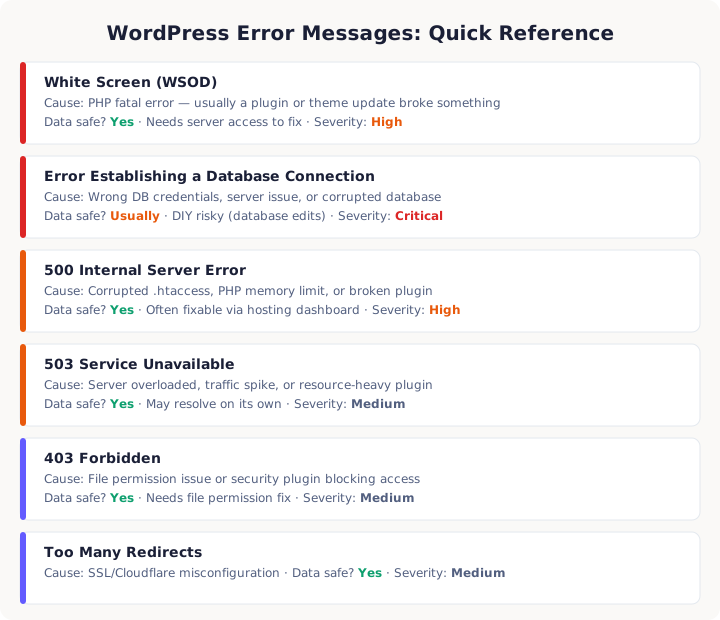
The error message (or lack thereof) is your biggest clue. Here's what each one means:
White screen (no text at all) — This is the famous "White Screen of Death." Almost always a PHP error caused by a plugin or theme update. Your data is safe. This requires server access to fix.
"Error establishing a database connection" — Your site can't talk to its database. Could be a server issue, wrong database credentials, or a corrupted database. Your data is almost certainly intact but the site can't access it.
"500 Internal Server Error" — A generic server-side error. Could be anything from a corrupted .htaccess file to a PHP memory limit. Often caused by a recent plugin update.
"503 Service Unavailable" — Your server is overloaded or undergoing maintenance. If your host's status page is clear, this might be a traffic spike or a broken plugin consuming too many resources.
"403 Forbidden" — Your server is denying access. This is often a file permissions issue or a security plugin that's blocking access (sometimes even blocking you).
"404 Not Found" (on every page, including the homepage) — Your permalink structure is broken, or your .htaccess file is corrupted. Usually fixable by resetting permalinks, but that requires admin access.
Redirect loop ("too many redirects") — Usually caused by conflicting SSL settings between WordPress, your hosting, and Cloudflare (if you use it). WordPress is trying to redirect somewhere but keeps getting sent back.
What if you see no error at all — just a slow, endlessly loading page?
This is different from a white screen. If your browser's loading spinner keeps spinning but the page never arrives, your server is alive but overwhelmed. Common causes:
- Traffic spike. A social media post went viral, or a bot is hammering your site. Your server can't handle the requests.
- A runaway plugin. A poorly coded plugin (often a backup, SEO, or caching plugin) is consuming all available PHP workers.
- Exceeded resource limits. On shared hosting, your account has used its allocated CPU or memory and your host is throttling you.
For slow-loading sites, your hosting provider's support is the best first call. They can see server-level metrics you can't.
The Diagnostic Flowchart: What to Do Next
Now you know what error you're seeing. Here's your decision tree:
If it's a hosting outage
Action: Wait. Check the status page every 30 minutes. Contact your host's support if it persists beyond 2 hours with no update.
Meanwhile: Post a quick message on your social media and/or send an email to customers if you have an e-commerce site. Something like: "We're aware our website is temporarily down due to a hosting provider issue. We expect it to be resolved shortly. You can still reach us at [phone/email]."
If your domain or SSL expired
Action: Renew immediately through your registrar or hosting dashboard. Domain renewals usually propagate within 1-2 hours. SSL reissues are usually instant.
If it's a WordPress error (white screen, 500, 503, database error)
This is where things get more nuanced. The fix requires server access — specifically, access to your WordPress files and potentially your database.
If you have hosting dashboard access (cPanel, Plesk, or a managed WordPress dashboard):
You may be able to:
- Access the file manager to rename a problematic plugin folder
- View PHP error logs to identify the culprit
- Restore from an automatic backup (the safest option if available)
If you received a WordPress recovery mode email:
WordPress 5.2+ automatically detects fatal errors and sends a recovery mode link to the admin email. Check your inbox (and spam folder) for an email from "WordPress" with the subject "Your site is experiencing a technical issue." This link lets you access your dashboard even when the site is down, so you can deactivate the problem plugin.
If you have no idea how to do any of this:
That's completely fine. You're a business owner, not a server administrator. This is the point where attempting fixes without experience genuinely risks making things worse. A wrong database edit can cause permanent data loss. A wrong file permission change can lock you out entirely.
When DIY Fixes Become Dangerous
Here's something the other WordPress help articles won't tell you: most WordPress "how to fix" guides are written for developers.
They casually tell you to:
- "SSH into your server and edit wp-config.php"
- "Open phpMyAdmin and run this SQL query"
- "Change file permissions to 755 via FTP"
- "Edit your .htaccess file"
If you don't know what those things mean, do not attempt them. Here's why:
Editing wp-config.php incorrectly can make your site permanently inaccessible. One typo in the database credentials and your site can't connect to its database at all — and you won't know what the correct values were.
Running SQL queries on your database without understanding them risks corrupting or deleting your data. Unlike file edits, database damage is often unrecoverable without a backup.
Changing file permissions incorrectly can make your site vulnerable to hacking or completely lock yourself out of the server.
Editing .htaccess with the wrong directives can create redirect loops, break all URLs on your site, or block everyone (including you) from accessing it.
This isn't to scare you. It's to save you from a bigger problem. The WordPress site being down is bad. Accidentally making it unrecoverable is worse.
The Cost of Waiting vs. the Cost of Getting Help
Let's talk numbers.
If your site is an e-commerce store doing $5,000/month in revenue, that's roughly $7 per hour in lost sales for every hour your site is down. If it's a $50,000/month store, it's $70 per hour.
But lost sales are only part of the cost:
- SEO impact. If Google crawls your site while it's down, it can temporarily (or permanently, if downtime is prolonged) drop your rankings. Recovering search rankings takes weeks or months.
- Customer trust. Visitors who hit an error page don't usually come back. They go to your competitor.
- Ad spend waste. If you're running Google Ads or Facebook Ads, you're paying for clicks to a broken site.
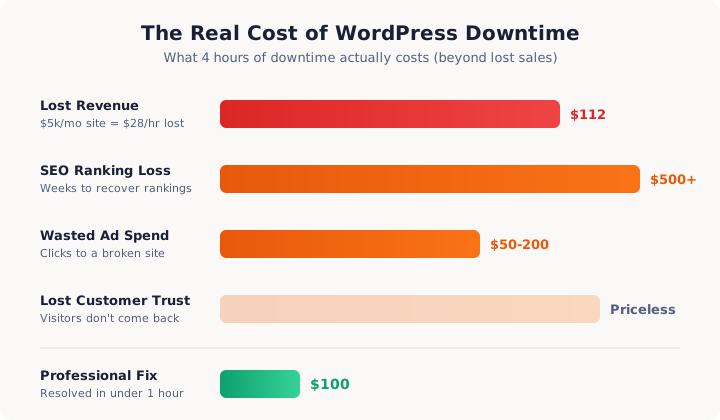
A professional fix typically costs $50-200 and resolves the issue in under an hour. The math usually works out clearly in favor of getting professional help fast rather than spending 3-5 hours troubleshooting (and potentially making it worse).
Here's a simple way to think about it: what is one hour of your time worth? If you earn more than $50/hour, paying a professional is cheaper even without factoring in lost revenue. You get your time back, your site back, and you avoid the risk of making things worse.
And there's a hidden cost most people miss: stress and distraction. Every hour you spend troubleshooting a WordPress error is an hour you're not running your business, serving clients, or doing the work that actually makes money. The mental cost of a down website — refreshing the page every two minutes, reading contradictory forum posts, second-guessing every step — is real even if it doesn't show up on an invoice.
How Professional Emergency WordPress Repair Works
Here's what happens when you hire a professional instead of trying to fix it yourself:
-
You describe the problem. What error do you see? When did it start? Did anything change recently (updates, new plugin, hosting change)?
-
You provide access. The service connects to your server (you don't need to know how FTP or SSH works — you just provide your hosting credentials).
-
They diagnose and fix. A professional knows exactly where to look based on the error message. What might take you 3 hours of Googling takes them 15 minutes.
-
They verify. The site comes back up. You verify it works. Done.
The whole process typically takes under an hour from start to finish.
The Emergency Decision Checklist
Run through this list to decide your next move:
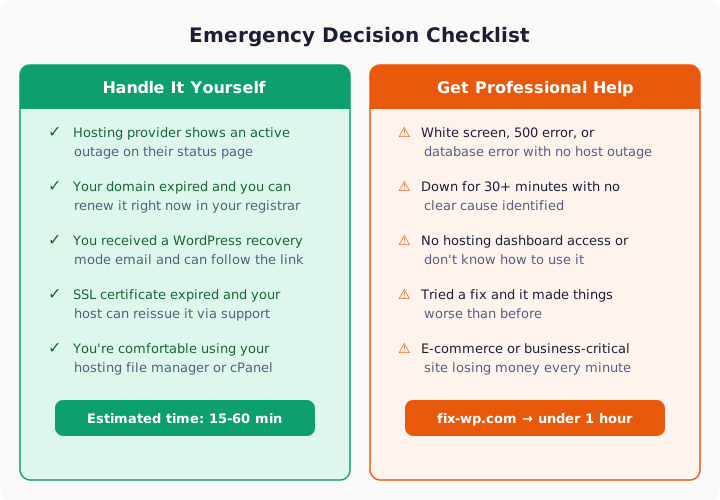
Handle it yourself if:
- Your hosting provider shows an active outage (just wait)
- Your domain expired and you can renew it right now
- You received a WordPress recovery mode email and feel comfortable following the link to deactivate a plugin
Get professional help if:
- Your site shows a white screen, 500 error, or database error and your host has no outage
- You've been down for more than 30 minutes with no clear cause
- You don't have access to your hosting dashboard or don't know how to use it
- You tried a fix from a blog post and it made things worse
- Your site is an e-commerce store or business-critical application losing money every minute
- You're not sure what the error means
Preventing Future Downtime: A Non-Technical Checklist
Once your site is back up, take 15 minutes to set up these safeguards so you're never caught off guard again:
1. Enable automatic backups. Most hosting providers offer daily backups. Verify yours are running and that you know how to restore from one. If your host doesn't offer backups, install a backup plugin (UpdraftPlus is the most popular free option). A good backup is the difference between "my site is down" and "my site is permanently gone."
2. Set up uptime monitoring. Free tools like UptimeRobot or BetterStack will check your site every 5 minutes and text/email you the moment it goes down. You'll know about downtime before your customers do.
3. Keep WordPress, plugins, and themes updated — but carefully. Outdated plugins are the #1 cause of WordPress security vulnerabilities and crashes. But updates can also break things. The safest approach:
- Enable auto-updates for minor WordPress releases (security patches)
- Update plugins manually, one at a time, and check your site after each one
- Never update everything at once — if something breaks, you won't know which update caused it
4. Use a staging environment for major changes. Before making significant changes (new theme, major plugin update, PHP version upgrade), test on a staging copy of your site first. Most managed WordPress hosts offer one-click staging. This is the single most effective way to prevent downtime from updates.
5. Know your hosting support number. Seriously. Save your hosting provider's support phone number or live chat URL in your phone's contacts right now. When your site is down at 11 PM and you're stressed, you don't want to be hunting for a login page.
6. Document your access credentials. Keep a secure record of your hosting login, domain registrar login, WordPress admin credentials, and any FTP/SSH details. Use a password manager (1Password, Bitwarden). When you need emergency help, having credentials ready cuts the fix time in half.
Frequently Asked Questions
Why is my WordPress site down?
The most common causes are hosting server issues, expired domain names, plugin conflicts after updates, exceeded PHP memory limits, database connection errors, and security breaches. About 60% of unexpected downtime is caused by hosting or server problems — not anything you did wrong.
How long does it take to fix a WordPress site that's down?
It depends on the cause. Hosting outages resolve on their own (usually within 1-4 hours). Plugin conflicts can be fixed in 15-30 minutes by a professional. Database errors typically take 30-60 minutes. A professional WordPress emergency service like fix-wp.com resolves most issues in under 1 hour.
Can I fix a down WordPress site myself without coding?
You can diagnose the problem and try basic fixes like clearing your browser cache, checking if your hosting is down, and verifying your domain hasn't expired. However, most actual fixes require server access (FTP/SSH) and database knowledge. Attempting advanced fixes without experience risks making the problem worse.
Will I lose data if my WordPress site goes down?
Usually not. Most downtime causes (hosting issues, plugin conflicts, PHP errors) don't affect your data. Your database and files are typically intact — the site just can't display them. However, attempting DIY fixes on your database without experience can cause permanent data loss. If in doubt, contact a professional before making changes.
How much does emergency WordPress repair cost?
Prices vary widely. Freelancers charge $50-200/hour with no guarantee. Agencies start at $150-500 for emergency work. fix-wp.com charges a flat $100 fee with a money-back guarantee — you only pay if the site is fixed.
Still down after 5 minutes? Every minute costs you customers. fix-wp.com resolves WordPress emergencies in under 1 hour — no FTP required on your end. $100 flat fee. Only pay if we fix it.
Related Guides
- Is WordPress Down? How to Check — Understand the difference between WordPress.org and your site
Still stuck? We fix it for you.
fix-wp.com resolves WordPress emergencies in under 1 hour. $100 flat fee. Only pay if we fix it.
Fix My Site Now